
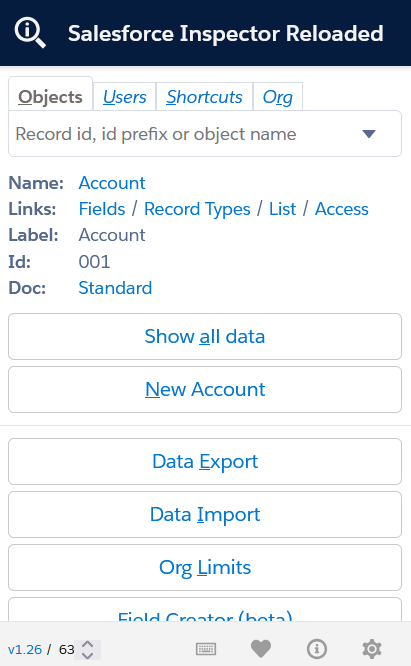
If you're a Salesforce administrator or developer, you know how often you need to switch between multiple tabs, navigate through various setup menus, and use external tools to complete everyday tasks. This is where Salesforce Inspector, a powerful browser extension revolutionizes how you interact with your Salesforce org by bringing essential productivity actions directly into your browser.
Salesforce Inspector is a browser extension available for all major browsers that provides productivity tools for Salesforce administrators and developers to inspect data and metadata directly from the Salesforce UI. The tool has evolved with community-driven versions like Salesforce Inspector Reloaded, which has gained tremendous popularity with over 50,000 users worldwide.
In this article, we'll explore the key features of Salesforce Inspector that will transform your daily workflow.
Record Actions
One of the most powerful aspects of Salesforce Inspector is its ability to provide deep insights into individual records without leaving the record page you're on. Let's explore the primary record-level actions available.
View Record Fields
The "Show all data" feature helps with verifying values of all the fields of the record, with the main advantage being that you can view values for fields not visible on the record page. This is perhaps the most frequently used feature of Salesforce Inspector, used by administrators and developers alike.
When you click "Show All Data" from the Salesforce Inspector panel on any record page, you can instantly see:
All field values: Every field's value for the object, regardless of whether it's on your record page
API names: The API names of all the fields, crucial for developers writing code or formulas
Data types: Whether fields are text, number, date, picklist, etc.
Field metadata: Additional properties for each field, like field length by clicking the dropdown arrow next to each field
Related record links: Clickable IDs that let you navigate to related records instantly
The Show all Data option is available for Reports as well, allowing you to see what folder a report is in or when it was last modified without adding or removing columns.
Search functionality: The Show All Data view includes a powerful search bar where you can quickly find specific fields by label or API name. This is especially useful when working with objects that have a hign number of fields or multiple fields with matching names.
Edit Record Fields
Beyond just viewing data, Salesforce Inspector allows you to edit fields directly from the Show All Data view, even if those fields aren't on the record page. This is a game-changer for quick data fixes and testing. We use this capability countless times when repeatedly testing flows, integration updates, and more.
How to edit fields
From the Show All Data view, click the "Edit" button at the top of the page to enable editing mode
Alternatively, double-click on any field value to edit that specific field
Make your changes and save
Important considerations: Salesforce Inspector does not support selecting actual values from a list for picklist fields, though it does allow you to save data like Data Loader would, but may throw an error. This means:
Text and number fields are straightforward to edit
For picklists, you'll need to enter the exact API value
Lookup fields require the record ID rather than the record name
Use cases:
Quickly updating a field value for testing purposes
Fixing data in fields that users don't have edit access to through the standard UI
Modifying system fields during troubleshooting
Editing multiple fields for a single record without navigating to different sections of the edit page
Why This Matters
Record Access and Field Permissions: All record actions are performed in user-context, so record and column access is never bypassed when performing these actions. Salesforce Inspector displays "(Unknown)" if a field exists for the object but you do not have permissions to view it. Once you have the appropriate permissions, the field value will be displayed appropriately.
Ease of Use: As an admin or developer, you often need to verify data in fields that aren't displayed on the page layout, understand why a formula isn't working, or quickly access related records. The Show All Data feature eliminates the need to edit page layouts or navigate through setup menus just to view information.
Object Actions
Salesforce Inspector isn't limited to working with individual records. It also provides powerful tools for working with entire tables quickly and managing object metadata.
Data Loading
The Data Import and Export features transform Salesforce Inspector into a lightweight alternative to Data Loader, accessible directly from your browser without any additional software installation.
Data Export: The Data Export option opens up a query editor where you can write SOQL queries just like you would in the Developer Console or Workbench, without the extra navigation. This feature includes:
SOQL query editor: Write queries with auto-completion and field suggestions
Relationship queries: Easily query parent and child objects
Multiple export formats: Copy results to Excel, CSV, or JSON format
Query saving: Store frequently used queries for quick access later
Archived data access: Export deleted records from the recycle bin or archived records
Data Import: The Data Import feature allows you to insert, update, upsert, or delete records using CSV or Excel files. Here's how it works:
Click "Data Import" in the Salesforce Inspector panel
Select the action type (Insert, Update, Upsert, or Delete)
Choose the target object
Select your file format (CSV or Excel)
Copy data from your file and paste it into the data column
Click "Import" and monitor the status
Key advantages
No need to install Java, or configure Data Loader on your computer
Quick fixes for small data issues
Test data creation during development
Immediate feedback for import success or errors
View Assigned Page Layout
Navigating to the edit page of the page layout assigned to your user is something Salesforce Inspector supports, as an additional option under the right hand side arrow when viewing all record data. This feature can save significant time, especially when you need to make quick page layout adjustments.
How it works
Open any record
Click "Show All Data"
Look for the arrow on the right side of the interface
Select the option to navigate to the page layout
Time savings: This seemingly simple shortcut can save several clicks and minutes of navigation, especially valuable when you're making iterative adjustments during development, especially for objects that have multiple page layouts and record types.
Search for Fields
One of the most underutilized yet powerful features of Salesforce Inspector is its advanced field search capability.
Salesforce Inspector allows you to search using all available field metadata, including label, API name, or even field description and help text. In Salesforce's standard interface, if a field's label doesn't match what you're searching for, you might not find it, because the Fields & Relationships section in Salesforce only returns results based on the field's label.
How to use it
Click the Salesforce Inspector icon
Navigate to the "Objects" tab
Search for your object
Click the object name or use the search functionality to find specific fields
Access field details and navigate directly to field setup pages
User Actions
The Users tab in Salesforce Inspector provides one of the most practical features for administrators and support teams: quick user lookup and the ability to log in as another user, perfect for quickly impersonating the business user they are assisting.
User Search Functionality
The Inspector allows you to access user information swiftly by searching for users by their name or other relevant details. Once you find a user, you can view their details, which includes:
Full name
Username
Email address
Profile assignment
Role assignment
User ID
Active status
Quick access: Simply click on the "Users" tab in the Salesforce Inspector panel and start typing the user's name. The search returns results instantly, making it much faster than navigating to Setup → Users.
Permissions
The extension provides quick controls to navigate directly to the logged-in or the searched user's assigned permission sets and permission set groups.
How to use it
Open the Salesforce Inspector panel
Navigate to the "Users" tab
Search for the target user
Click Pset or PsetG buttons
Login as Another User
The Inspector enables you to log in as another user, providing a fast way to troubleshoot issues and understand user experiences. This feature is invaluable for:
How to use it
Open the Salesforce Inspector panel
Navigate to the "Users" tab
Search for the target user
Click the user's name
Click the "Try Login" button
Considerations
You must have the "Log in as Another User" permission in your profile or permission set
All actions you take while logged in as another user are logged and auditable
You should always inform users and follow your organization's policies regarding logging in as others
Time savings
This eliminates at least 4-5 clicks and page navigations.
Navigate to Setup → Users
Find the user in a potentially long list
Click into their detail page
Click the "Login" button
Additional Developer Capabilities
Let's look at 3 more handy features that are indispensable especially for developers.
Explore API
The Inspector transforms Salesforce APIs in a click-to-navigate pattern where most of the API hierarchy can be navigated to and the results of each API click can be viewed in a JSON and a CSV format.
REST Explorer
While less powerful that API clients like Postman, the extension has a barebones REST client to interact with the Salesforce REST API. All HTTP methods are supported and the results can be viewed and copied with a clean UI interface.
The benefit here is that the underlying authentication/authorization is applied automatically for the logged-in user without having to worry about tokens and client secrets provisioning or expiration.
Event Monitor
The extension also provides a clean UI to set it up as a listener for Events published in Salesforce. This includes both standard events and custom events in your org.
This allows you to quickly attach a subscriber to your events that are in development or being debugged and view the event result.
Best Practices and Tips
To get the most out of Salesforce Inspector, keep these best practices in mind.
The extension communicates via official Salesforce webservice APIs on behalf of the currently logged in user, meaning it can access nothing but the data and features the user has been granted access to in Salesforce.
For organizations with strict security requirements, consider implementing API Access Control to restrict extension usage to authorized users.
Save frequently used SOQL queries for quick access.
Customize extension settings in the Options page to match your workflow.
Conclusion
Salesforce Inspector (and Salesforce Inspector Reloaded) transform the way administrators and developers interact with Salesforce by eliminating context switching, reducing navigation overhead, and providing powerful data management capabilities directly in the browser. Whether you're viewing hidden fields, running quick SOQL queries, troubleshooting user issues, or editing page layouts, this extension can save countless hours over the course of your Salesforce career.
The features covered in this guide represent some of the core functionality that makes Salesforce Inspector an indispensable tool. As the extension continues to evolve with community contributions, even more powerful features are released frequently.
If you haven't already installed Salesforce Inspector, head over to your browser's extensions and add it to your browser today. Your future self will thank you for the time saved and frustration avoided.
Note: Salesforce Inspector is not an official Salesforce product and is maintained by the community. Always follow your organization's security policies when using browser extensions.